
Welcome to the “Lessi Learned” Newsletter!

We all use totally secure passwords in both our private and professional lives—right? But is that really the case?
Take for example the rather surprising revelations after the recent heist at the Louvre Museum in Paris: during the robbery last month, it emerged that the password for the museum’s video-surveillance system was simply “LOUVRE”. (cybernews.com)
As if the front-door code to Fort Knox were “FORT KNOX” (but possibly worth a try 😊 ).
Incidents like this perfectly highlight why, in the new Veeam Software Appliance V13, the password policies based on Defense Information Systems Agency (“DISA-STIG”) standards cannot be weakened by administrators.
Is it fun, or particularly user-friendly, to be forced into complex passwords with uppercase, lowercase, numbers, and symbols? No. But as the Louvre example shows, it’s absolutely essential.
I hope my “Lessi-learned” insights from the past two weeks are interesting and useful for you—thanks for reading, and happy (and safe) password-practicing!

Newsflash
New Integration: Veeam App for Microsoft Sentinel
The Veeam App for Microsoft Sentinel is installed directly in the Azure Portal’s Sentinel Content Hub and enables the integration of backup and security events from the Veeam Data Platform into Microsoft Sentinel.
The app ingests over 300 backup and security events, including job failures, suspicious activity, ransomware detections, and restore operations. These events are delivered via the Veeam API or Syslog to the Log Analytics Workspace used by Sentinel.
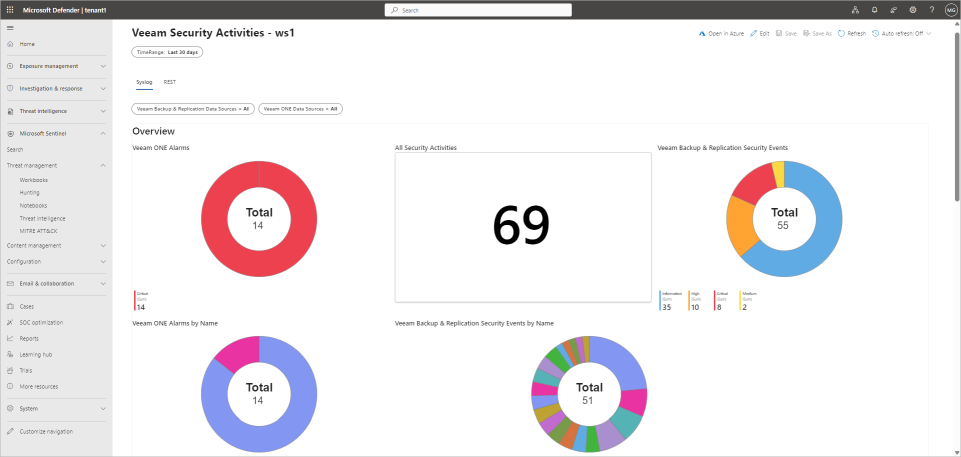
Native dashboards are provided in Sentinel → Workbooks, alongside analytic rules, hunting queries, and automation playbooks that allow actions such as restores or malware scans to be triggered directly from Sentinel.
The app is available at no additional cost for customers with Veeam Data Platform Advanced or Premium editions and can be installed via the Microsoft Marketplace or Sentinel Content Hub.
Want to learn more? Here are the links:
Patch your systems!
Keeping your environment up to date is crucial. Here are the key updates from the past few days:

This release was already part of “Patch your systems” in my last newsletter.
But because of the “Files with Microsoft Purview Sensitivity Labels Are Not Accessible After Being Restored” issue it might make sense to upgrade to 8.2.0.2008 as a minimum, better to the latest build. Read more about this issue in KB 4754.
Beside that it also fixes the “Processing archive mailbox: [email protected] failed with error: Mailbox is not fully configured.” issue (read more here in KB4787). There is a good chance, that you will get rid of some errors in the console.

Lessons learned
My lessons learned these weeks (and there were many of them for whatever reason):
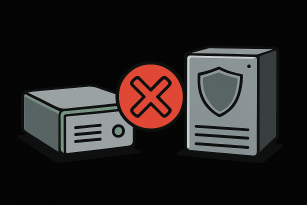
No Connection? Check the Security Officer First!
With the release of Veeam Software Appliance (VSA) version 13, Veeam also introduced its brand-new Infrastructure Appliance: it enables the deployment of infrastructure roles such as Proxy or even the Hardened Repository.
Before you can successfully connect such a Hardened Repository with the VSA, there’s one small — but crucial — step you shouldn’t overlook:
Under “Host Management,” make sure to complete the activation/configuration of the “Security Administrator” role on your Hardened Repository.
Skip this, and you’ll see a handful of cryptic errors like:
- Failed to connect to deployer service, host ‘x.x.x.x’, port ‘6160’
- Failed to check deployer service compatibility.
- Failed to verify the client connection token.
Once the Security Officer role is properly configured, nothing stands in the way of linking your Hardened Repository with the VSA.
How to pre-seed backup files to a Veeam Hardened Repository
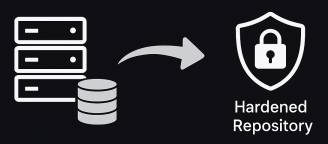
When migrating existing backup chains to a new (hardened) repository, precision is key.
One skipped step can mean trouble for your data integrity — so here’s how to do it right
To ensure a smooth and safe migration, follow steps 1–5 from the official Veeam Help Center guide exactly as described: 🔗 Help Center Instructions
Key points to consider:
- Follow the documented procedure precisely. No exclusions, retention adjustments, or other deviations are permitted during the process.
- Pause the primary backup job. Until the final Backup Copy Job is operational, no new backups may be created.
- Data transfer (Step 3: “Transfer”). When moving data from an intermediate repository (for example, a USB drive) to the hardened repository, use the “File Copy” function in the Veeam Backup & Replication GUI. The entire subfolder (matching the backup job name) must be copied without any file modifications.
- Immutability is not active immediately after transfer. It becomes effective only once the primary backup job runs again and automatically triggers the Backup Copy Job. From that point onward, the immutable flag is applied to all newly created restore points in the chain. Existing points remain unchanged.
This ensures a clean and verifiable migration process with consistent data protection across all repositories.
Veeam Backup for M365 – Immutability & Backup Copy Jobs
Sometimes it’s the small settings that matter most. The following is valid only for Veeam Backup for M365 installations using Object Storage as repository. To be honest, I was not aware of this little note:
For Backup Copy Jobs: the immutability period of the target object-storage must equal the job’s retention period. Veeam Helpcenter documentation
For primary backup jobs, immutability can be configured independently (it doesn’t have to match retention). Veeam Helpcenter documentation
Documentation in Helpcenter is clear, but easy to miss.
Veeam Software Appliance v13 & fun with DISA-STIG, Passwords, MFA
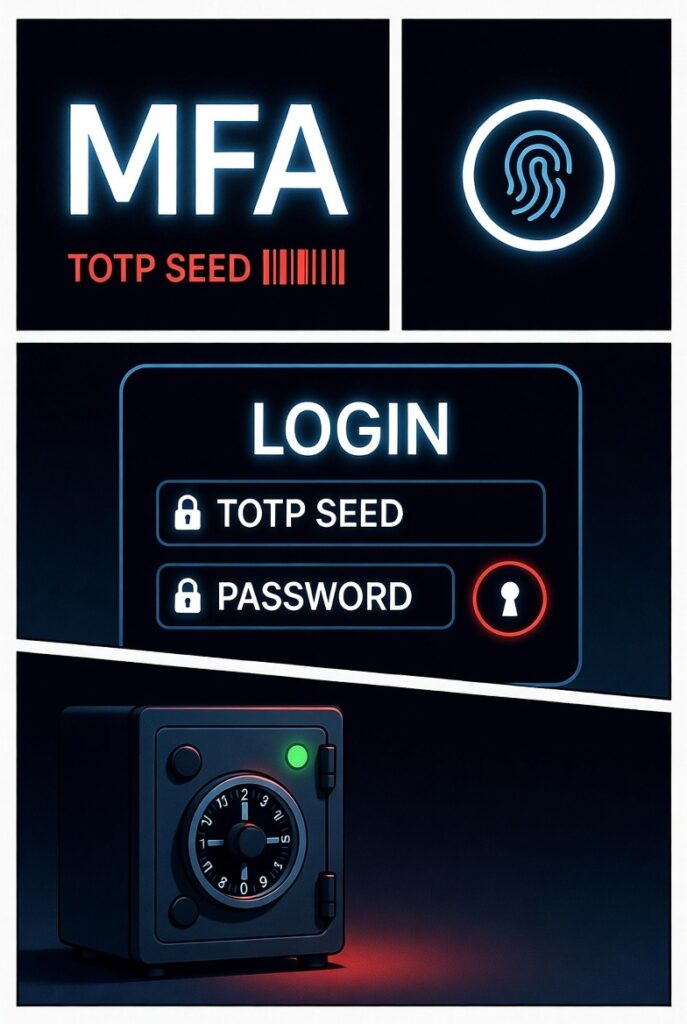
This week I spent considerable time working with the new Veeam Software Appliance (VSA) v13. One topic you simply cannot avoid in this context is hardening according to the DISA STIG.
It’s quite the challenge to come up with a password that meets the strict password-policy requirements. And then MFA enters the picture.
If you’ve already worked with the VSA, you know that you need separate users: one for host-management and another for console access to Veeam Backup & Replication (VBR) itself. Although the username might be the same for both accesses, MFA must be configured individually for each of these users. That was my first “Lessi-learned” in this context.
The second learning concerns documentation: Many organisations use a password safe for storing passwords securely and in a retrievable manner. It makes perfect sense to document the TOTP-seed as well — just in case you ever need to re-configure your authenticator app. The TOTP seed is displayed during MFA setup, alongside the QR-code.
SureBackup: VMs Fail to Start Due to Invalid Credentials
A recent SureBackup issue revealed an unusual cause.
Although the configuration appeared correct, the VMs inside the Veeam Data Lab would not start. All error messages pointed to invalid credentials — but not for any backup infrastructure accounts.
The issue turned out to be related to the root credentials of the Virtual Lab (Helper) appliance.
Solution: update the password in Veeam Credential Manager (Type: SSH, Description: Helper Appliance credentials) as described in Veeam KB1447.
Afterward, open the Virtual Lab properties and click Next → Next → Finish to reapply the configuration.
I’m not entirely sure why this happened (perhaps someone had modified the passwords in the Credential Manager), but it’s definitely something worth noting down — just in case the same behavior shows up again.

Feature of the day
I’ve always found it a bit annoying that after Instant Recovery operations, the vPower NFS datastores stay mounted on ESXi hosts — even though the recovery job is long finished. Some admins even resort to custom cleanup scripts just to keep their environments tidy.
As it turns out, there’s a hidden feature in Veeam that can handle this automatically.
It’s not enabled by default, but with two simple registry keys, you can make Veeam perform the unmounting process for you — clean and controlled.
Automatically Unmount vPower NFS Datastores from ESXi Hosts
These registry keys automate the cleanup of vPower NFS datastores, for example, after Instant Recovery operations.
Without them, manual cleanup or scripting is required.
1. vPowerNFSUnmountDatastore (DWORD, 1)
Purpose: Controls whether Veeam Backup & Replication automatically unmounts the vPower NFS datastore after completing a restore operation (such as Instant VM Recovery).
Usage:
- Value 1: Enable automatic unmounting.
- Value 0 (or missing): Keep the datastore mounted after the job finishes.
How to set:
Create a DWORD value named VPowerNFSUnmountDatastore under the registry path:HKLM\SOFTWARE\Veeam\Veeam Backup and Replication
Set the value to 1.
2. vPowerNFSUnmountDatastoreRetryTimeoutMinutes (DWORD, X)
Purpose: Defines the timeout (in minutes) for retrying the unmount if the first attempt fails.
Usage:
The value specifies how long Veeam will keep retrying before giving up.
For example, 1 means retry unmounting for up to one minute.
How to set:
Create a DWORD value named vPowerNFSUnmountDatastoreRetryTimeoutMinutes in the same registry location and set it to the desired number of minutes.
After adding or modifying these keys, restart the Veeam services to activate the setting.
From then on, Veeam will automatically take care of unmounting vPower NFS datastores — no more manual cleanup, no more leftover entries in vSphere.
Thanks for reading
I hope you enjoyed this edition of my Lessi-Learned Newsletter. Thank you for reading!
Got feedback or something you want to see in the next edition? Leave a comment, write me on X (@lessi001) or connect at LinkedIn.
Want to get the newsletter hot off the press? Sign up for my mailing list and I’ll drop a note in your inbox as soon as the latest issue is ready: