
Welcome to the “Lessi Learned” Newsletter!
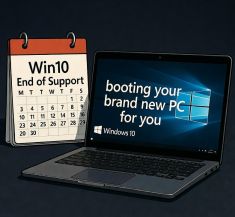
Perhaps this situation sounds familiar: your dad’s ancient laptop can’t even handle Windows 11, and finally, the time has come to retire that old relic.
It’s never fun to say goodbye to what’s familiar or to learn something new, but keeping systems up to date is essential—for efficiency, security, compliance, and, frankly, peace of mind.
Take the UK’s Department for Environment, Food & Rural Affairs (Defra) as a cautionary tale: in 2025, they spent millions upgrading thousands of laptops from Windows 7… only to land on Windows 10, right as mainstream support ended (see the official letter here). Ouch.
It’s a classic reminder that patching, upgrading, and modernizing aren’t optional—they’re survival skills in today’s fast-moving digital landscape. Ignoring updates isn’t just risky; it can leave your organization exposed to security threats, operational hiccups, and a mountain of technical debt.

Newsflash
Welcome Veeam Version 13.0.1!
A lot has happened these weeks!
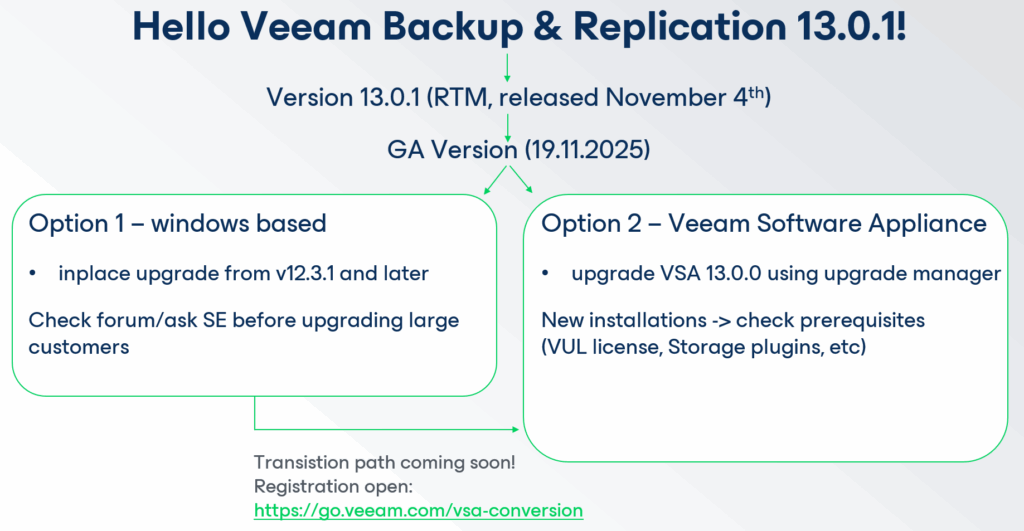
As of November 19, Veeam Backup & Replication 13.0.1 is officially GA (Generally Available) and ready for download. And this release is more than “just another major upgrade.”
Alongside the classic Windows-based edition, you now also get a pre-built, pre-hardened (DISA-STIG compliant!) Veeam Software Appliance (VSA) as a brand-new deployment option.
But VBR isn’t the only product getting an upgrade. Here’s the full lineup—complete with direct links to the “What’s New” documents:

- Veeam Backup & Replication v13.0.1
- Veeam Recovery Orchestrator (VRO) v13.0.0
- Veeam ONE v13.0.1
- Veeam Service Provider Console v9.1
So the big question is: How do you upgrade, how do you get onto the Veeam Software Appliance, and what should you watch out for?
Let’s walk through the products one by one:
Veeam ONE
You can safely upgrade Veeam ONE to 13.0.1 anytime. Version 13.0.0 has been around since September 3rd, 2025, and Patch 1 arrived roughly a month later. As usual, Veeam ONE should be the first component you update. Just make sure to follow the upgrade guidance in the Help Center.
One thing you’ll notice immediately after upgrading: reporting performance has received a massive boost. And that’s just the beginning—the “What’s New” doc is packed with improvements.
Veeam ONE remains Windows-only, even in its latest version.
Veeam Enterprise Manager
After Veeam ONE, Enterprise Manager is next in line. It’s available in both Windows and Appliance variants. In existing Windows environments, the upgrade is a classic in-place update—again, check the Help Center notes before hitting “Next, Next, Finish.”
Before you start, it’s worth preparing the entire environment for version 13. The release of Patch 1 for Backup & Replication is usually a great indicator that it’s a good time to upgrade.
For new installations, definitely consider the Veeam Software Appliance. The installer (.iso or .ova) lets you deploy not only VBR but also Enterprise Manager as an appliance.
Upgrade info:
https://helpcenter.veeam.com/rn/veeam_backup_13_0_1_release_notes.html
Veeam Backup & Replication (VBR)
If you’re running a Windows-based environment, the logical next step is upgrading to VBR 13.0.1 (Windows edition). Before rushing in, take your time to prepare properly. Several features are deprecated or discontinued, so reviewing your current setup is essential. Some items may block the upgrade entirely if still in use; others remain functional but can no longer be configured.
In short: now is the perfect moment to run a health check—either with your partner of choice or DIY—and clean up + prepare your environment.
Watch out for OS versions as well; certain older operating systems are no longer supported.
For production environments, many admins prefer to wait for Patch 1 unless a new feature is urgently needed. The Help Center includes detailed upgrade instructions, plus checklists to keep things tidy.
If you rely on VMware vSphere and Veeam Storage Integration, double-check that your storage vendor already supports version 13. Not all plugins have been updated yet.
For new environments, the recommendation is clear: strongly consider the Veeam Software Appliance.
It’s pre-built, pre-hardened, and significantly enhances security with far less effort than a Windows-based setup. The built-in immutable repository in all-in-one deployments is a huge plus—while it’s not a full Hardened Repository (you’d need dedicated hardware for that), it’s an excellent high-security alternative without extra gear.
Storage plugin compatibility + upgrade checklist:
https://helpcenter.veeam.com/rn/veeam_backup_13_0_1_release_notes.html
Migration Path: Windows → Veeam Software Appliance
The official migration path for moving from Windows-based VBR to the VSA is still in the works. So for now, the recommended sequence is:
prepare your environment → upgrade to 13.0.1 on Windows → switch to VSA once the migration path is published.
Registration for conversion assistance: https://go.veeam.com/vsa-conversion
Veeam Agents (Windows/Linux) & Plugins
Agents and plugins are also updated with version 13. Make sure to check OS support and other changes before upgrading. The Help Center provides all required checklists and compatibility notes.
What’s new in VBR?

Just a taste:
⚡Veeam Backup Console improvements
⚡High Availability for VBR (VSA only, Premium Edition required)
⚡Universal CDP
⚡Instant Recovery to Azure (perfect match for Veeam Vault)
⚡New features for Nutanix & Proxmox…
… and plenty more!
With so many new features and product updates, now is the perfect time to dive into the documentation and get your environment ready for the next generation of Veeam.

Lessons learned
Encryption Key Change Alert
I discovered that many people don’t know that changing encryption keys in Veeam can trigger an alert via the Enterprise Manager. But why is this important?
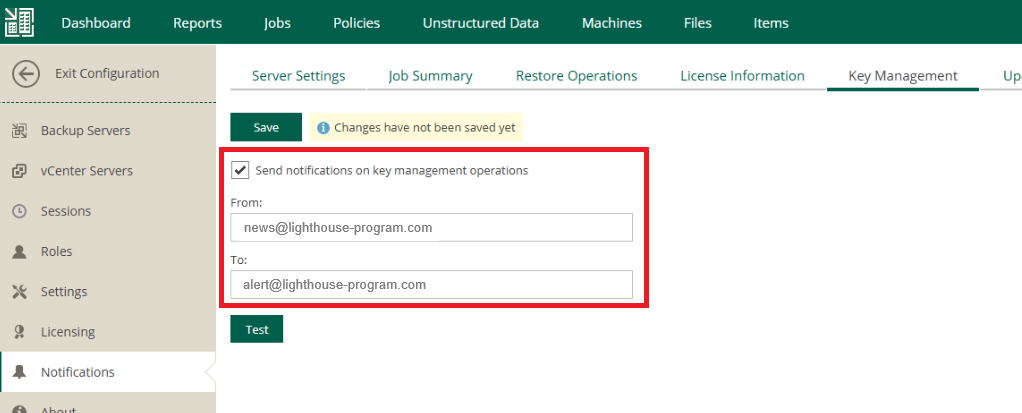
If attackers gain access to the VBR server and quietly modify the encryption key, the impact on restoreability can be catastrophic. Fortunately, Enterprise Manager offers a built-in notification feature that acts like a security tripwire.
By enabling Key Management Notifications in the configuration section, administrators can ensure that any key modification, deletion, or expiration instantly generates an email alert. Setting it up is straightforward: configure SMTP settings, define sender and recipient addresses, and enable the “notify on key operations” option.
Once active, the system keeps a watchful eye on all key-related events. Learn more about this feature in the Veeam Helpcenter.
Locking Yourself Out of the Veeam Software Appliance
During recent lab testing with the Veeam Software Appliance (VSA), I had to learn something the hard way:
Entering the veeamadmin password incorrectly three times results in an immediate account lock.
With DISA-STIG–level password requirements in place, it’s easy to run into this situation — the policies are excellent for security but leave little room for minor input mistakes.
This led to my first “Lessi Learned”:
Neither the Host Management UI nor the Veeam Web Client gives any indication that the account is locked.
- Host Management UI: “Authentication failed.”
- Web Client: “Invalid credentials.”
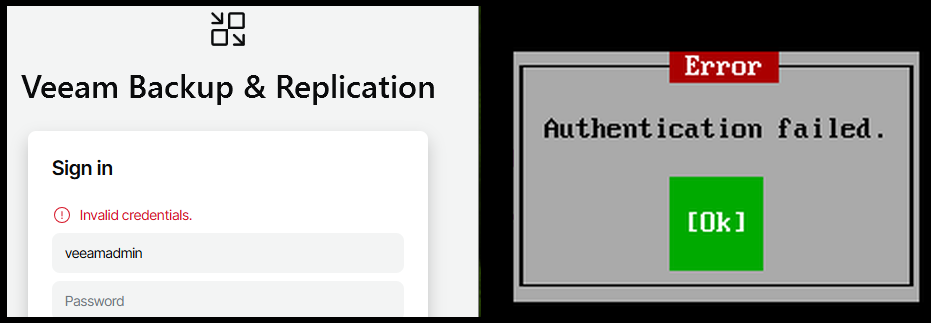
The message itself is not incorrect — it simply does not differentiate between an actual wrong password and a locked account. This behavior is likely intentional, as it prevents potential attackers from gathering information about account states.
Getting back into the game:
The path back into the system depends entirely on whether a Security Officer (veeamso) was configured during initial setup.
Scenario 1: No Security Officer Configured
According to the Veeam documentation, if no Security Officer exists, the locked account automatically unlocks after 15 minutes.
No further action is required — access restores itself after the lockout period.
Scenario 2: Security Officer Is Configured
If a Security Officer account is enabled, locked accounts do not automatically unlock. Only the Security Officer can unlock them.
How the Security Officer Unlocks an Account
- Log in to the Host Management Console as the Security Officer
- Navigate to: Overview → Accounts → Select locked account → Unlock
- Save the changes
Official documentation:
https://helpcenter.veeam.com/docs/vbr/userguide/hmc_manage_user_auth.html
When Everything Goes Wrong: Security Officer Locked Too
If the Security Officer account (veeamso) also becomes locked, recovery is only possible using the Security Officer Recovery Token.
This token is the sole method to regain access — without it, console-level procedures are required.
More details here:
https://helpcenter.veeam.com/docs/vbr/userguide/hmc_users_security_officer.html
Lessons Learned:
- Users are locked after three failed login attempts
- Save the recovery tokens in a secure place
Upgrade? Read the documentation first (aka RTFM)
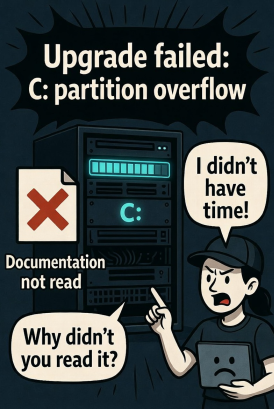
Some customers and partners already started the upgrade to Veeam Backup & Replication V13. Something I’ve now heard for the third time is that users have run into a rollback simply because the C: drive ran out of space.
As always, a quick look into the documentation would have saved the day — the storage requirements during the upgrade are described there in detail:
Ensure that the backup server has sufficient disk space. The minimum disk space is calculated dynamically during the system configuration check in the upgrade procedure.
It is based on the list of required packages to be installed on the machine and usually is about 9 GB.
We recommend allocating at least the minimum disk space calculated during the system configuration check, but not less than 55.5 GB:
3 x ISO size (50.5 GB) in the selected installation path (for example, D:\VBR) plus 5 GB for the database operations on the system volume (for example, C:).
As with every upgrade, it’s absolutely essential to read the documentation thoroughly and work through the checklists before hitting that “Start Upgrade” button.

Feature of the day
Instant Recovery for SQL and Oracle
Did you know that you can instantly recover more than just virtual machines?
That’s right — the Instant Recovery saga continues! Veeam has taken this powerful technology even further, and it’s available since some versions for Oracle and SQL databases as well.
So how does it work, and what does it look like in practice?
Use Case 1: Publish Database for Testing
Your development team needs access to a massive production database for testing.
A traditional restore? Hours of waiting. Gigabytes of storage wasted.
With Publish Database, you can mount that database directly from backup — no waiting, no extra storage. Developers get instant access, and you can enjoy your coffee!
Note: Publish is not intended for production use. The streamed database can’t be reused later — once the Publish session ends, all changes are lost!
Use Case 2: Instant Database Recovery
Now imagine a real emergency — a critical SQL or Oracle database goes down, and suddenly half the company is twiddling their thumbs.
Instead of a full restore that could take hours, Instant Database Recovery spins the database back online within minutes, while the full restore happens quietly in the background. Users are back to work, and you look like the hero of the day.
Important:
When planning for Instant Database Recovery, make sure to consider the performance of your backup repository in advance. The database can only perform as fast as the repository behind it!
And as always — test and document your recovery process during calm times, so you know exactly what to do (and that it works) when the pressure is on.
Interested to learn more about this feature?
Check the documentation here:
- Publish Database (SQL): Data Publishing for Microsoft SQL Server
- Instant Recovery (SQL): Veeam Help Center – How Instant Recovery Works for SQL
- Instant Recovery (Oracle): Veeam Help Center – How Instant Recovery Works for Oracle
Thanks for reading
I hope you enjoyed this edition of my Lessi-Learned Newsletter. Thank you for reading!
Got feedback or something you want to see in the next edition? Leave a comment, write me on X (@lessi001) or connect at LinkedIn.
Want to get the newsletter hot off the press? Sign up for my mailing list and I’ll drop a note in your inbox as soon as the latest issue is ready: